
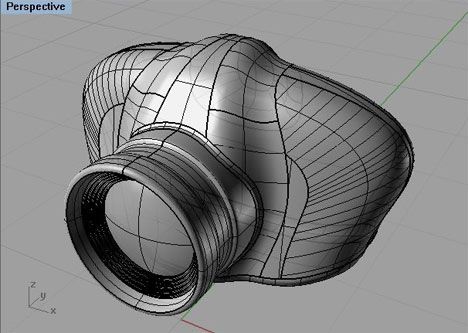
AutoCAD is one of the most widely used computer-aided design (CAD) software tools in the world. Whether you’re entering architecture, engineering, interior design, product design, or manufacturing, AutoCAD can help you bring your ideas to life with accuracy and precision.
If you’re a beginner, starting with AutoCAD can feel overwhelming—but with the right approach, you can learn to create professional-quality designs much faster than you think. In this guide, you’ll discover what AutoCAD is, why it’s important, and how you can begin creating your first advanced drawings.
What Is AutoCAD?
AutoCAD is a professional CAD software used to create 2D drawings and 3D models. It allows designers to:
- Draft technical drawings
- Create architectural plans
- Design mechanical components
- Visualize products
- Edit and optimize layouts with precision
Thanks to its versatility, AutoCAD is used across multiple industries, from construction to aerospace.
Why Beginners Should Learn AutoCAD
If you’re new to design or engineering, AutoCAD offers several advantages:
✔ Industry Standard
Most companies rely on AutoCAD, making it an essential skill for students and professionals.
✔ High Precision
AutoCAD allows you to create designs with exact measurements down to millimeters.
✔ Versatile Tools
You can draft, modify, annotate, measure, and convert your work easily.
✔ Strong Career Opportunities
AutoCAD proficiency is highly valued in architectural firms, engineering companies, manufacturing industries, and design studios.
Step-by-Step Guide: How to Start Creating Professional Designs
1. Get Familiar with the Interface
AutoCAD’s layout might look complex, but each section has a purpose:
- Command line – where you enter commands
- Ribbon toolbar – tools for drawing and editing
- Drawing area – your workspace
- Navigation bar & view cube – used for zooming and rotating
Spend time exploring the interface before diving into drawing.
2. Master Basic Drawing Tools
Begin with the core drawing commands:
- Line (L)
- Circle (C)
- Rectangle (REC)
- Arc (A)
- Polyline (PL)
These form the foundation of most designs.
3. Learn Modification Tools
To refine your drawings, practice essential modify commands:
- Trim (TR)
- Extend (EX)
- Move (M)
- Copy (CO)
- Mirror (MI)
- Offset (O)
These tools help you adjust shapes with precision.
4. Use Layers for Organized Designing
Layers help you separate different elements of your drawing:
- Electrical layout
- Furniture layout
- Structural plan
- Dimensions
- Text & labels
Color-coding layers makes your design cleaner and easier to edit.
5. Add Dimensions and Text
Professional drawings need accurate measurements and notes.
Use:
- DIM for dimensions
- MTEXT for annotations
This step turns a simple sketch into a real technical drawing.
6. Practice with Real Projects
Start with beginner-friendly exercises:
- Room layout
- Building floor plan
- Simple mechanical part
- Furniture design
Hands-on practice strengthens your understanding faster than theory alone.
7. Save and Export Your Work
AutoCAD supports multiple formats:
- DWG – primary drawing format
- DXF – for sharing with other CAD software
- PDF – for printing and submission
Learning how to export cleanly is a key part of professional work.
8. Explore 3D Tools (Optional for Beginners)
Once you’re confident in 2D drafting, try basic 3D commands:
- Extrude
- Revolve
- Sweep
- Union & Subtract
This transforms your flat drawings into realistic models.
Final Thoughts
Learning AutoCAD as a beginner may feel challenging, but with consistent practice and the right approach, you can start creating professional designs in no time. Focus on mastering basic tools, practicing real projects, and building confidence step by step.


